Roll20’s Dynamic Lighting Update Adds Editable Barriers and a New Hotbar
Roll20 is building editable lighting barriers and a Light layer hotbar that brings drawing, lights, doors and windows into one place.
Roll20’s Dynamic Lighting update is built around two changes players and game masters will feel directly: barriers can be edited after they’re drawn, and lighting tools are moving into a hotbar on the Light layer. The aim is to make map setup less fragile, so a misplaced point or a hard-to-find setting doesn’t force a restart or interrupt play.
Fran, a UX designer on Roll20’s virtual tabletop team, shared the work in progress after Lavi first introduced the project last month. The team is still refining the tools and menus, but its direction is clear: keep the map in focus, put related controls together, and let GMs repair lighting lines piece by piece.
Editing barriers without starting over
Today, a barrier is difficult to correct once drawn. If a line traces the edge of a room and one point lands in the wrong place, the GM may have to redo the line. Roll20’s new model treats barriers as collections of points and segments, each of which can be edited on its own.
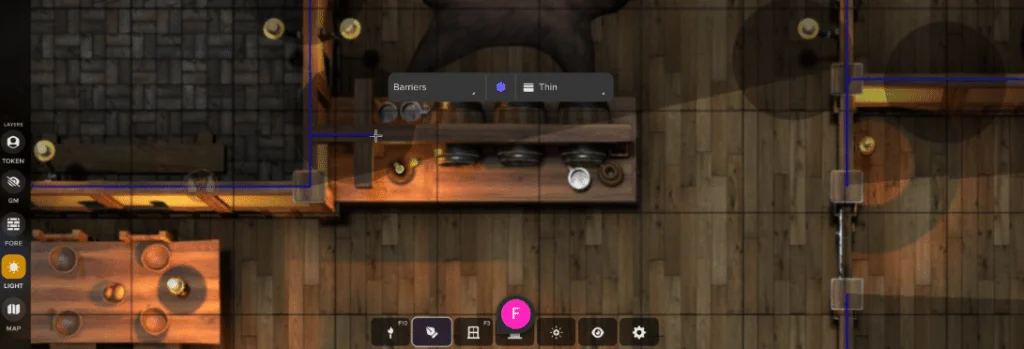
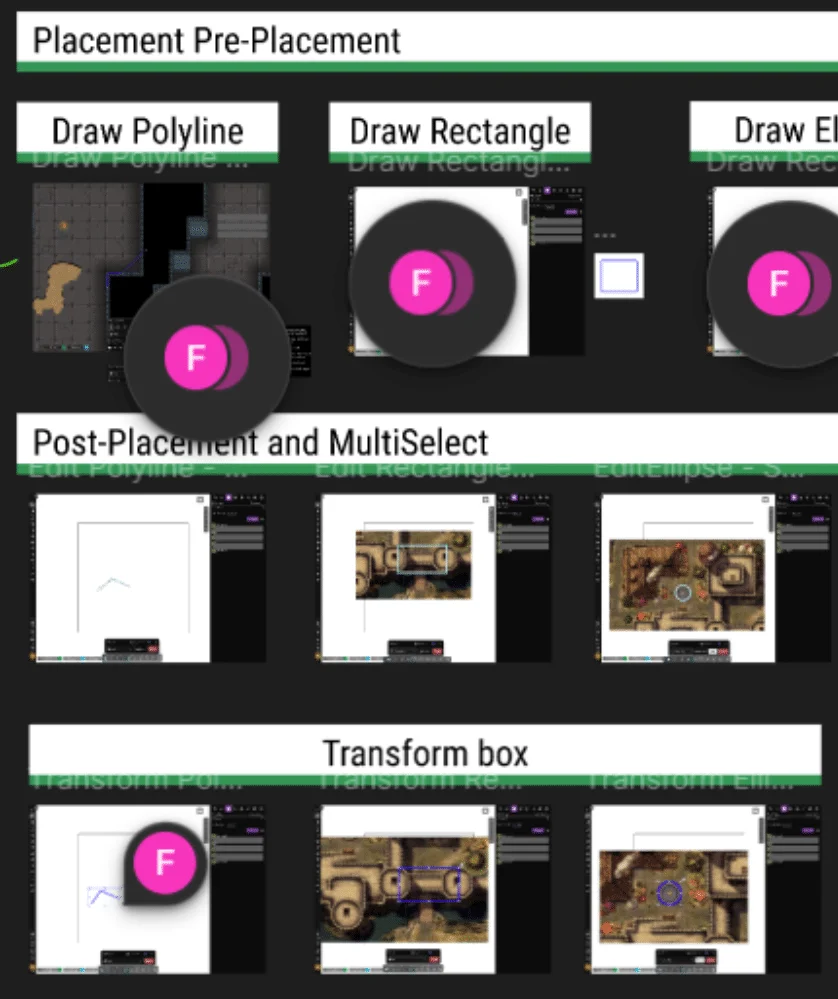
With the current prototype, a GM can drag a point or segment, or select it and move it with the arrow keys. Alt-clicking a line adds a point in the middle, which can also extend a line from its end. Individual points and segments can be selected and deleted with Delete or Backspace. A whole polyline can be selected with a double-click or Ctrl-click, then removed with either key.
The selection can also change a barrier’s type after it’s drawn. A wall can become a one-way barrier or a door without rebuilding the line. That flexibility matters in rooms where a map’s geometry is already in place but the way characters move through it changes during setup.
Several details are meant to make editing feel predictable. Double-clicking selects a complete polyline. Points snap together when they meet, so moving a shared corner can move both adjoining walls. The team also supports several ways to finish a line: Enter, Escape, double-click, right-click, or the Done button.
Keyboard behavior is still under review. In the current tool, Shift snaps drawing to the grid. In the test environment, Shift constrains lines to straight and 45-degree angles, while Alt snaps to the grid. That arrangement follows common drawing software conventions, but it changes what existing users may expect from Shift. Roll20 says it chose the new behavior deliberately and is open to feedback. The team is also checking whether the transform box is easy enough for the people who rely on it.
Lighting tools move onto the map
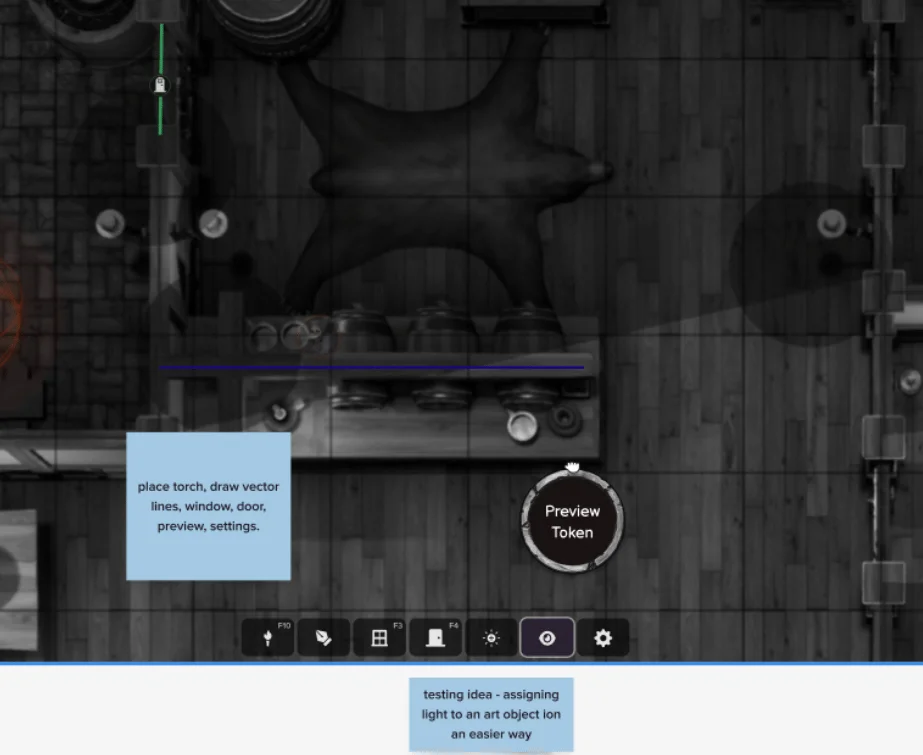
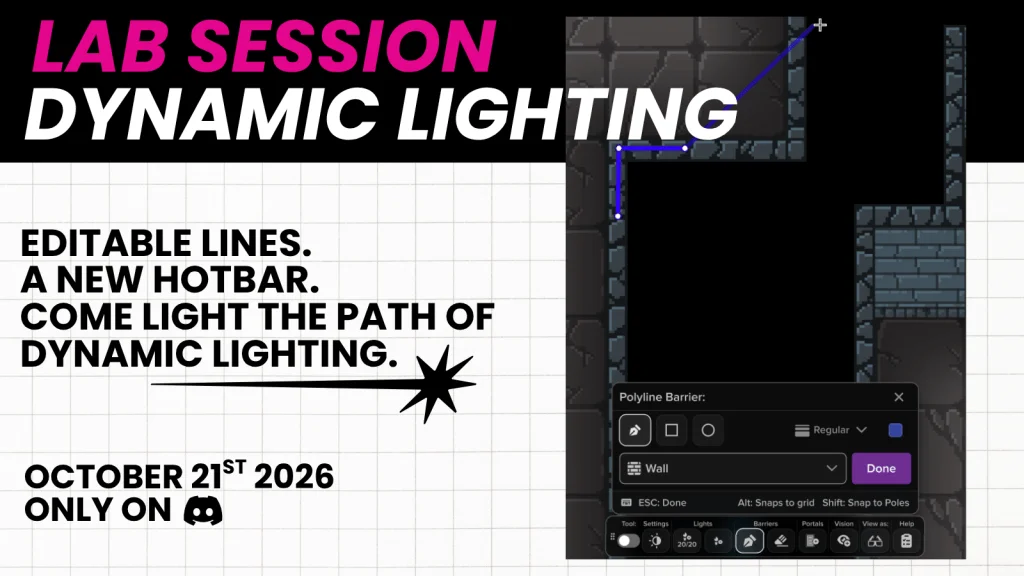
The second change is a contextual hotbar at the bottom of the screen when a GM is on the Light layer. Its planned controls include a Dynamic Lighting on/off switch, the lighting settings menu, torch placement and creation, barrier drawing and erasing, portal placement, vision assignment, and a view-as-player option. Roll20 describes the current lineup as subject to change.
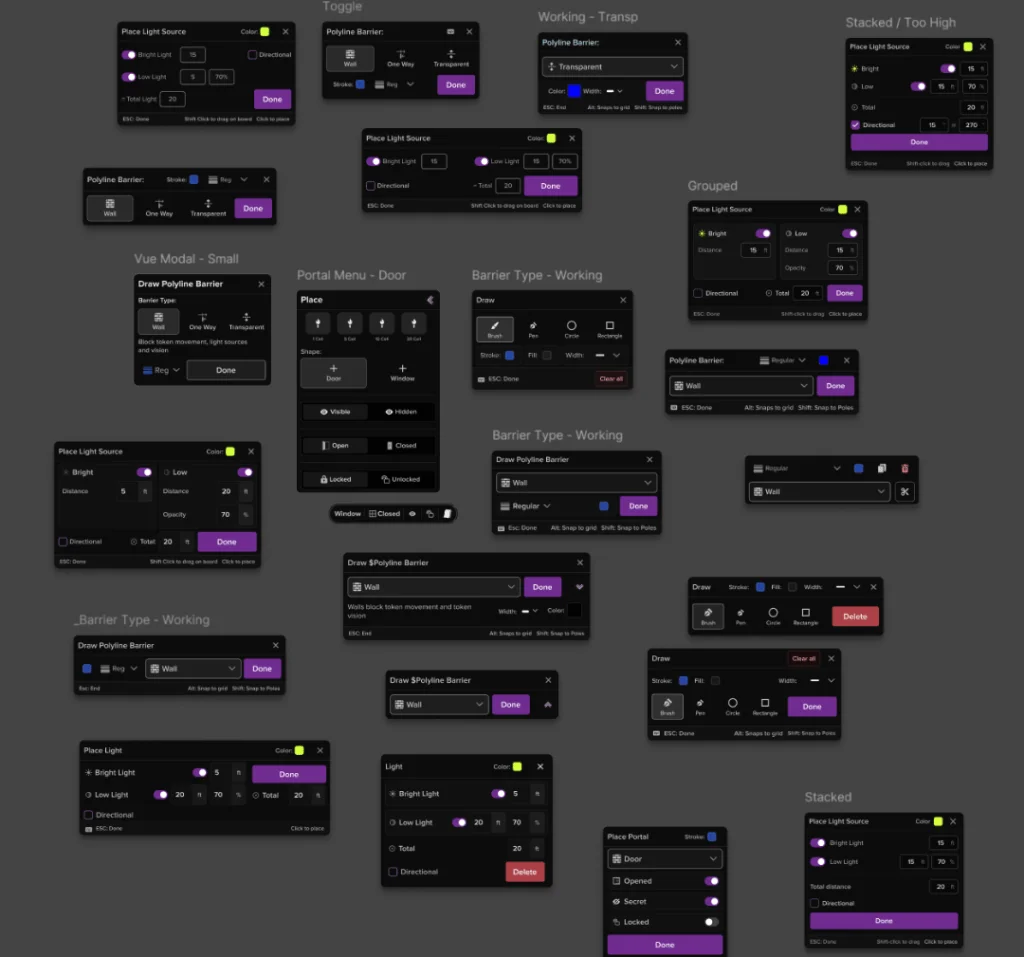
That placement responds to a recurring complaint: lighting actions are scattered across menus and settings, while drawing happens elsewhere. One GM described the tools as difficult to find and asked for the interface to respond to the layer they were using. Putting barriers, lights, doors, and windows together should make the relationship between a tool and the map more immediate.
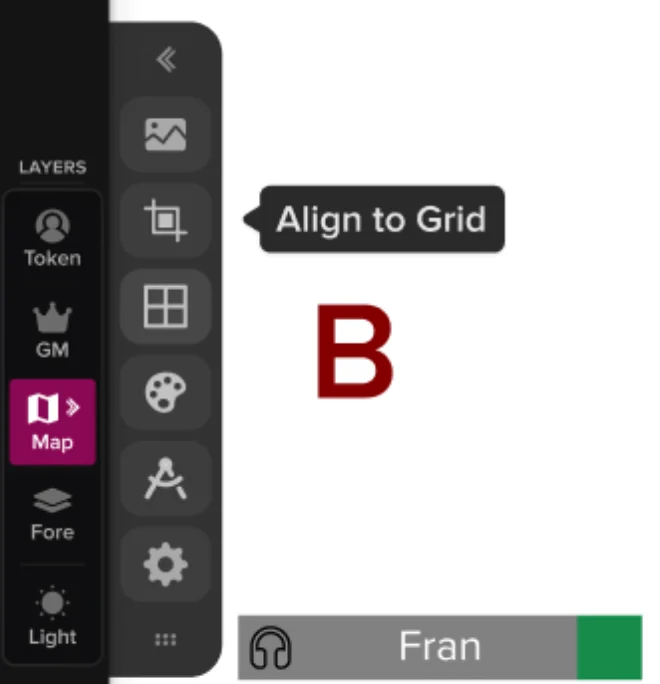
The hotbar has a longer design history. Fran says early research on a layers redesign supported the idea that actions should live on the layer where they apply: map tools on the Map layer and lighting tools on the Light layer. Roll20 introduced a new toolbar and layers panel in 2023 and early 2024, then prioritized page folders and performance work. The layer-specific actions were set aside, although Fran had already prototyped a lighting hotbar and tested it with GMs.
Those early tests drew positive responses. Participants said the layout made the tabletop feel central, resembled the feel of running a game at a physical table, and kept options organized rather than buried in menus. One tester’s verdict was: “Everything. Push this to prod already.” Fran cautions that the concept was still a proof of concept. At the time, users were also asking Roll20 to improve Dynamic Lighting’s performance and stability.

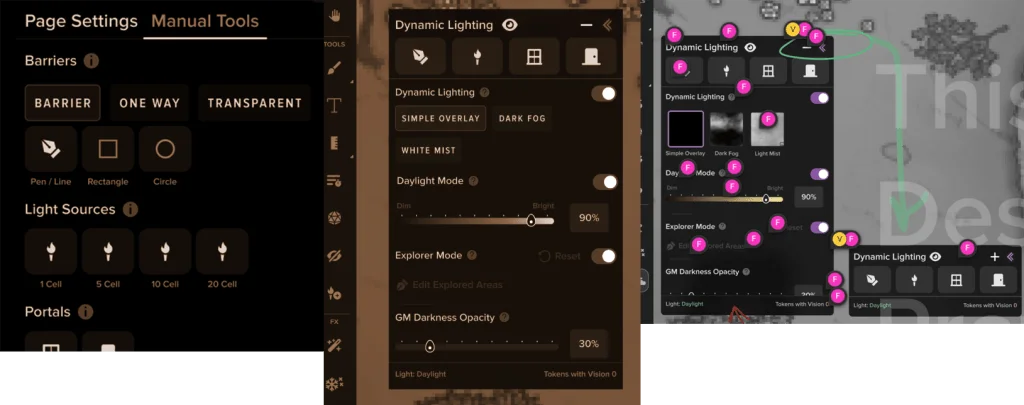
Later attempts to put every lighting control inside the settings panel didn’t solve the underlying problem. One concept added a Manual Tools tab for barriers, lights by cell size, and portals; another placed a small hotbar inside the panel. Both gathered controls, but still kept GMs in a menu instead of bringing them back to the map.
Design work shaped by player feedback
Requests for editable lines, more light presets, different keyboard controls, and a brush tool surfaced across user conversations, forum discussions, and interviews about other features. Fran describes those comments as anecdotal. Taken together, they pointed to a broader expectation: modern drawing tools should let people adjust what they’ve made, instead of treating every line as fixed.
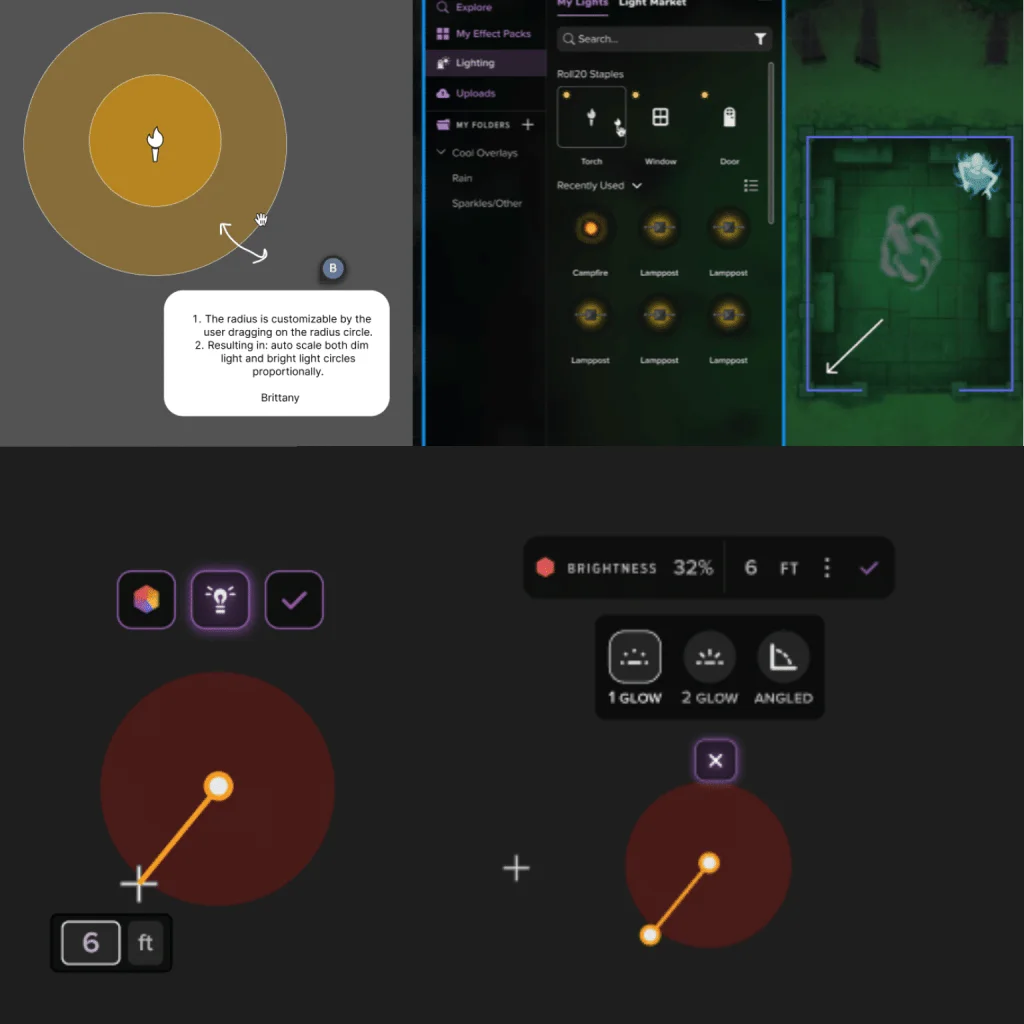
Before settling on the current direction, the team explored more playful ways to work with lighting. Early concepts included controls directly on the map, brushes, and presets. VTT developers also explored on-map radius adjustment during a hackathon, using capabilities from the new engine as a starting point for possible interactions with other features and objects. These were experiments, and Roll20 says not all of them worked out.
Fran also mapped the existing line interactions against the ones users needed or wanted. That work produced a detailed inventory of drawing behaviors and helped define how the new editing model should behave. The current tools are beginning to feel solid, while the team continues to refine their menus, visual states, and keyboard shortcuts.
What the team is refining
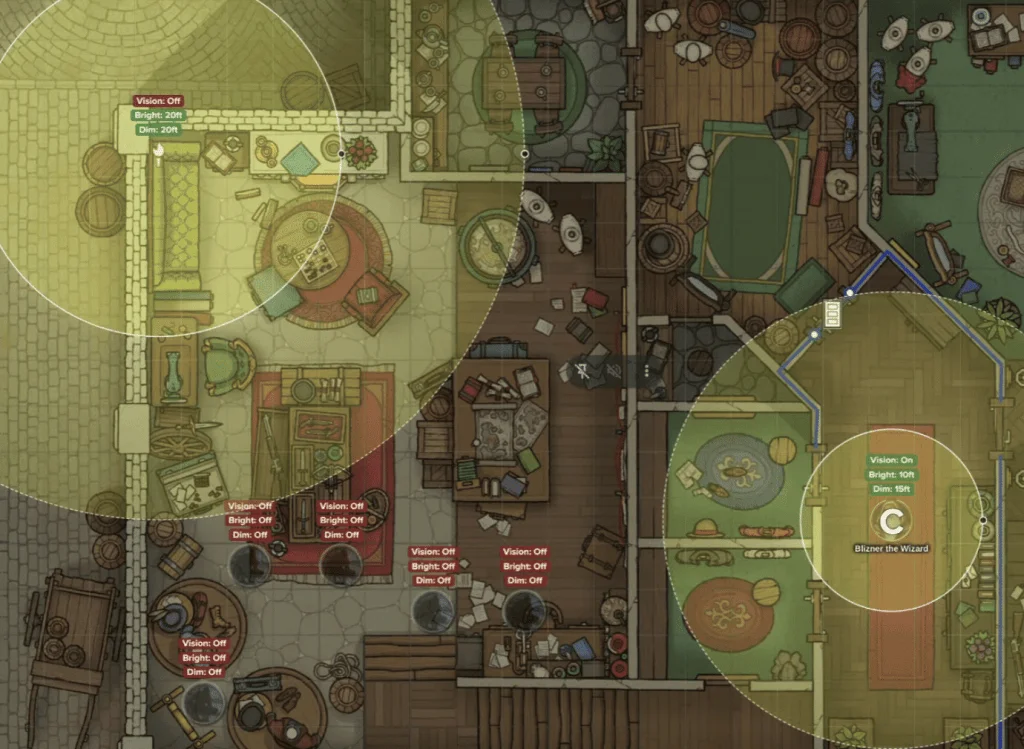
Beyond drawing and selection, Roll20 is exploring ways to make visibility easier to understand. The team wants GMs to see whether players can view an area and, when they can’t, understand why. It is also considering how to assign vision and light settings without covering the map in interface elements, and how to help new users grasp Dynamic Lighting sooner.
Some early ideas include on-map toggles and controls for adjusting lighting. Roll20 stresses that these concepts are still in progress and aren’t promised features. The team is continuing to build out the hotbar menus, expanding from barriers to torches, doors, and windows.
Roll20 plans to gather feedback through Dynamic Lighting Lab Sessions in its Discord community. The source post includes an RSVP link for the session. Players who can’t attend can also reach the team through Instagram, Reddit, and Discord.
The clearest promise in this preview is practical: a lighting line should be something a GM can adjust, not a high-stakes drawing that has to be perfect on the first try. The next test is whether the hotbar and its editing controls make that flexibility easy to use while building a map.